Guide
How to export your X (Twitter) bookmarks: Markdown, CSV or JSON
X has no bookmark export, and your data archive leaves bookmarks out. Export your X (Twitter) bookmarks and likes as Markdown, CSV or JSON in a few clicks.
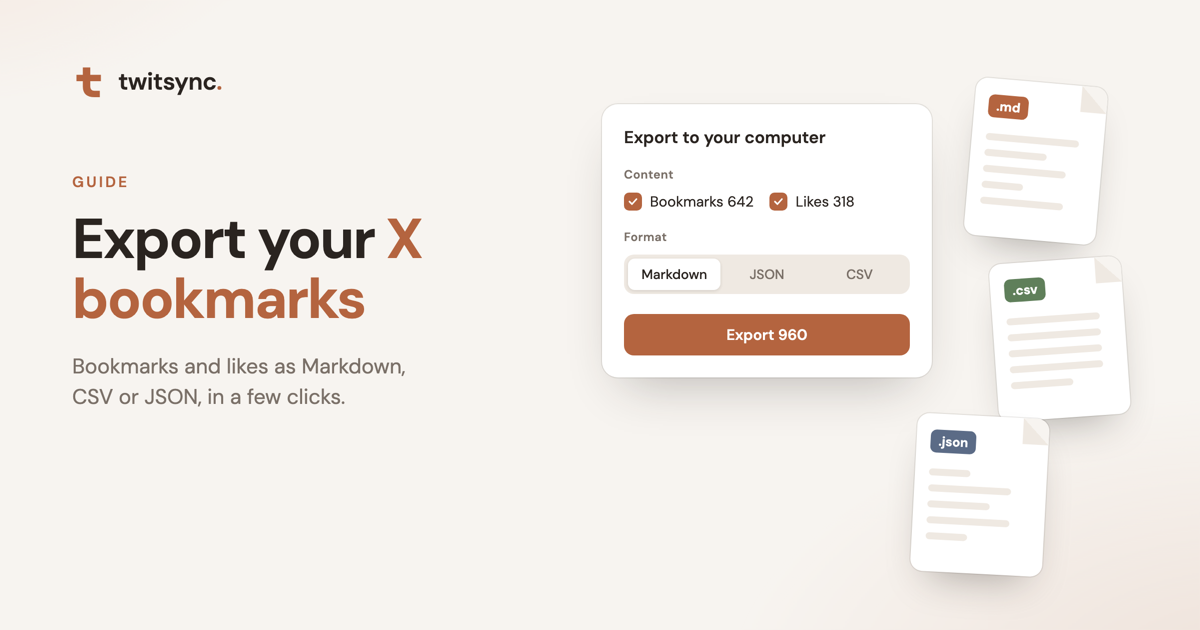
The short answer: X doesn't let you export bookmarks, and the data archive you can download from X leaves them out. To get them out, sync your bookmarks to twitsync with its Chrome extension, then export them from Sync & settings as Markdown, CSV or JSON. Your likes can be exported the same way.
Why X won't give you your bookmarks
You've probably tried the obvious routes already:
- Settings → Download an archive of your data. The archive leaves your bookmarks out.
- The bookmarks page. It keeps scrolling, with no export button, no select-all, and a search box that only matches exact words.
- Copying links one by one. Fine for ten posts, hopeless for a few hundred.
So the bookmarks you've collected for years can only be read inside X, one at a time.
How to export X bookmarks, step by step
1. Sync your bookmarks to twitsync
- Sign up for twitsync for free and add the extension to Chrome on your computer, following the steps on screen.
- Open your library and click Start sync. The extension reads your bookmarks and likes using the X login already in your browser. No password, no API key.
- Wait for the first sync to finish. After that it keeps running in the background, about every 15 minutes while Chrome is open.
The extension is read-only: it never posts, likes or follows for you.
2. Open the export panel
Go to Sync & settings and scroll to Export to your computer.
3. Pick what to export
- Content: tick Bookmarks, Likes, or both. Each shows how many you have.
- Format: Markdown, JSON or CSV (more on each below).
4. Download
Click Export. The file is generated and downloads straight to your computer.
Two things to know:
- Up to 1,000 posts per export, newest first. If you've selected more than that, the panel tells you, and the latest 1,000 are exported.
- The file is kept for 24 hours. Exporting the same selection again within that time gives you the same file, so posts synced in between show up in the next one.
Which format should you pick?
| Format | What you get | Best for |
|---|---|---|
| Markdown | One .md file, one section per post: author, time, link to the original, the post text, and images with their original links | Obsidian and other note apps, or reading the whole lot as one document |
| CSV | One row per post: id, link, author name and handle, date, bookmark / like flags, text, media links | Excel, Google Sheets, Numbers: sorting, filtering, counting |
| JSON | Posts in X's own data structure (quoted posts and link cards aren't included) | Scripts and your own tools |
Markdown into Obsidian
Drop the .md file into your vault and it sits next to your own notes. Each post is its own heading, so it shows up in the outline, and the link to the original is right under it. Long X Articles come through with their title and text.
CSV into a spreadsheet
The file opens straight in Excel, Google Sheets or Numbers. Sort by date, filter by author, or use the is_bookmark and is_like columns to split the two lists.
JSON for code
Use JSON if you want to process the data yourself, for example to build your own index or feed posts into another tool.
Exporting the posts you've liked
Likes sync along with your bookmarks. To export only likes, untick Bookmarks and leave Likes ticked. It works with all three formats.
That's useful even if you rarely bookmark: plenty of people have thousands of likes, a record of everything they read and agreed with, and X gives no way to search or export it.
Do you need to export at all?
Often the reason to export is simply to find things again. In twitsync your bookmarks and likes are already searchable: a few keywords or an author's name is enough, and it works on your phone as well. If you mostly save on your phone and read later, see using X bookmarks and likes as a read-later list.
Export is for when you want a copy of your own: a backup, your notes app, or your own code.
Frequently asked questions
Can I export X bookmarks without a third-party tool? No. X has no bookmark export, and the data archive from Settings doesn't include bookmarks. You need a tool that reads them from your account, such as the twitsync extension.
How do I export my Twitter bookmarks to CSV? Sync them to twitsync, open Sync & settings → Export to your computer, tick Bookmarks, pick CSV and click Export. The file opens in any spreadsheet app.
Can I export my X bookmarks to Obsidian?
Yes. Export as Markdown and drop the .md file into your Obsidian vault. Each post becomes its own section with the author, time and a link to the original.
How many bookmarks can I export at once? Up to 1,000 per export, newest first.
Can I export only my likes? Yes. Untick Bookmarks and keep Likes ticked before exporting.
Do I have to give twitsync my X password? No. The extension works in the browser where you're already signed in to X. We never ask for your password.
What happens to my data if I stop using twitsync? In Sync & settings you can stop syncing, or delete everything stored in the cloud in one click. Export a copy first if you want to keep it.
Get started
Sign up for twitsync for free, add the extension, and click Start sync. Once the first sync finishes, your bookmarks and likes are ready to search, read and export.